1. What Is a Scatter Plot?
A scatter plot visualizes the relationship, or correlation, between two numerical variables. One variable is placed on the horizontal X-axis and the other on the vertical Y-axis, with each observation shown as a point.
Scatter plots are often used to examine relationships such as:
- Manufacturing conditions, such as temperature or time, and quality measurements, such as dimensions or resistance
- Advertising spend and sales, or study time and test scores
- Age and satisfaction scores in survey data
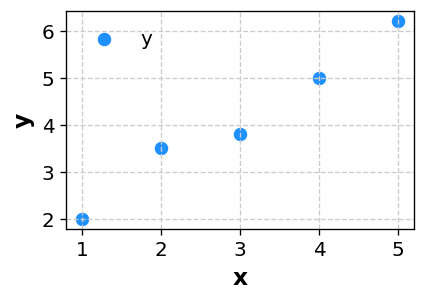
Paste your data in CSV format to create a similar scatter plot automatically.
2. What Can You Learn from a Scatter Plot?
2-1. Direction and Presence of Correlation
The arrangement of points helps you assess whether a correlation exists and in which direction it runs.
- Points rising from left to right suggest positive correlation: as one variable increases, the other tends to increase.
- Points falling from left to right suggest negative correlation: as one variable increases, the other tends to decrease.
- Widely scattered points suggest little or no strong correlation.
A correlation coefficient summarizes the relationship with a number, while a scatter plot shows the actual shape and spread of the data.
2-2. Spread and Clusters
Areas where many points gather reveal common combinations and typical ranges.
- A tight concentration may indicate that the conditions are limited to a narrow range.
- Two or more clusters may indicate that the data contains different groups.
2-3. Finding Outliers
A point far from most of the data may be an outlier.
- It may be caused by a measurement or data-entry error.
- It may represent data collected under an unusual condition.
Finding outliers in a scatter plot can lead to better data-quality checks and further investigation.
3. Preparing Your Data
A scatter plot requires a numerical X value and a numerical Y value. Sakura Chart can draw a scatter plot from the following format.
3-1. Simple Scatter Plot
x,y
1.0,2.0
2.0,3.5
3.0,3.8
4.0,5.0
5.0,6.2
Select x for the X-axis and y for the Y-axis.
3-2. Coloring Groups with a LEVEL Column
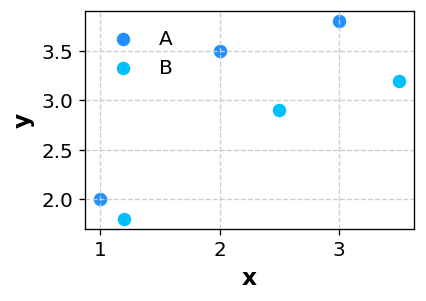
Add a LEVEL column when you want different colors for conditions, production lines, products, or other groups.
x,y,LEVEL
1.0,2.0,A
2.0,3.5,A
3.0,3.8,A
1.2,1.8,B
2.5,2.9,B
3.5,3.2,B
With this structure, Groups A and B appear in different colors, making their patterns easy to compare.
4. How to Create a Scatter Plot with Sakura Chart
- Prepare
x,y, and, if needed,LEVELcolumns in Excel or a spreadsheet. Copy the data range. - Paste it into the text area on the Sakura Chart home page.
- Select “Continue to chart builder,” then choose Scatter as the chart type.
- Select the X-axis column, such as
x, and the Y-axis column, such asy. - If your data includes a LEVEL column, select it to color the points by group.
- Adjust the point color and size, axis ranges, and grid lines as needed, then select “Create chart.”
See the How to use page for detailed screen instructions and information about other chart types.
4-1. Try a regression line with sample data
This illustrative dataset compares the response Y to setting X in two groups. It is not measured data. Use it to check the entire workflow before entering your own observations.
- Choose Scatter, select X and Y, and use LEVEL for group colors.
- In Regression (scatter), set Regression line to Linear fit and Equation / R² to Equation and R².
- Generate the chart. Each LEVEL group gets a fit in its own color. Splitting groups into separate charts also fits each group separately.
Expected results and how to read them
For A, the fitted line is approximately Y = 1.5X + 0.667 with R² = 0.964. For B, it is Y = 1.5X + 1.333 with R² = 0.964. Both slopes are the same, while B is about 0.667 units higher at the same X. This illustrates why comparing groups separately can be useful.
The slope describes the fitted change in Y per unit of X. The intercept is the fitted Y at X = 0; here that lies outside the sample range and is not an observed measurement. R² summarizes the fraction of variation in Y accounted for by this fitted line, not the probability that a future prediction is correct.
Export the same result
PNG, Excel and PowerPoint exports include the regression line, equation and R² in the chart image. The Office chart itself is an image, not an editable native Office chart. Excel also includes the source data and the selected statistics and conditions.
Before using the result
- A high R² does not establish causation. Three points are only a workflow example; inspect more observations, outliers and curved patterns before drawing conclusions.
- Missing and non-numeric pairs are excluded. At least two valid points with different X values are required. R² is N/A when Y is constant.
- Log axes do not turn this into a log-transformed regression: the fit uses the original values, excluding non-positive values on log axes. The tool does not display confidence or prediction intervals.
5. When Should You Use a Scatter Plot?
- When asking how Result B changes as Condition A changes
- When you want to see the actual distribution of points, not only a correlation coefficient
- When examining the relationship between manufacturing conditions and quality characteristics
- When comparing two numerical survey variables, such as age and satisfaction
- When exploring patterns before regression analysis or machine learning
A scatter plot is a powerful first step when you want to find out whether two numerical variables may be related.
6. Summary
- A scatter plot shows the relationship between two numerical variables through the position of points.
- The pattern of points helps reveal the direction and apparent strength of correlation.
- With X, Y, and optional LEVEL columns, you can create a scatter plot easily in Sakura Chart.
- Scatter plots are also useful for finding outliers and identifying clusters.
When you want to inspect the relationship between two numerical variables, start with a scatter plot. With Sakura Chart, you can paste your data and create a report-ready scatter plot in just a few clicks.